
In this section, you’ll learn more about the terms and words commonly used in GeoPrisma. You’ll also see some diagrams that explains the architecture of GeoPrisma.
A Resource is associated to a unique set of data, but it can have many different Web Services serving it in different ways. For example, a Resources named GMap_Roads could have its data served by many different kind of servers. Here’s an example of what this looks like (with an example of use of the service in question) :
The Access Control on Resources is managed by the ACL. The definition of DataStores and Widgets a Resource is linked to is defined in the Configuration file.
It’s the equivalent of a layer of a server, i.e. a LAYER of a mapfile (MapServer), or a layer in a configuration file (FeatureServer, TileCache), etc. DataStores are linked to a single Service. They are defined in the Configuration file.
A Service is a GeoSpacial Web Server, like WMS. Here’s a list of the current Services available in GeoPrisma :
- WMS
- FeatureServer
- TileCache
- MapServer
- GYMO (Google, Yahoo, Microsoft, OpenStreetMap)
- Widget (customized to work with a single widget)
- MapFishPrint
- File
- WFS
- HTTPRequest
- WPS
- TMS
Here’s the XML representation of a Service :
<service>
  <name>S_WMS_DEV4G_GMAP</name>
  <type>wms</type>
  <source>http://dev4g.mapgears.com/mswms_gmap?</source>
  <options>
    <version>1.3.0</version>
  </options>
</service>
Warning
Please note that the above example is a representation, not the actual way of defining a Service when using a XML config driver. When doing so, the tag <service> should be replaced by <wms> in order to be correct, like the following :
<wms>
  <name>S_WMS_DEV4G_GMAP</name>
  <source>http://dev4g.mapgears.com/mswms_gmap?</source>
  <options>
    <version>1.3.0</version>
  </options>
</wms>
Mandatory service properties :
- name (must be unique, will be used as a reference inside DataStore objects)
- type (in the XMLConfig drivers, the type is defined as the node name of a service. See in above example). Here’s the list of possible values :
- wms
- tilecache
- featureserver
- gymo
- widget
- mapfishprint
- file
- wfs
- httprequest
- wps
- tms
- source (the URL of the service. Since 1.6.0, variable substitution can be used in the URL; all placeholders taking the form ${GP_MY_VAR} (where MY_VAR can be any alphanumerical string, including underscores) will be replaced with the value coming from a PHP session variable with the same name, i.e. GP_MY_VAR. Note that the GP_ prefix is mandatory, otherwise the placeholder will not be substituted.)
- provider (only for gymo services, can either defined as a property or an option)
- apikey (only for gymo services, can either defined as a property or an option)
A service can have the following options :
- version (for example, if set to a wms service, it will define the version to use when querying for features (GetFeatureInfo) or maps (GetMap).)
- info_format (for example, if set a wms service, it will define the info_format parameter to use when querying for features (GetFeatureInfo).)
- staticCache (boolean), only used by TileCache services. When set to true, the requests made to the services will be made to the cache directory directly instead of accessing it with WMS. The source property of the service must point to the according cache directory instead of theà tilecache .cgi or .py script.
- provider (only for gymo services, can either defined as a property or an option)
- apikey (only for gymo services, can either defined as a property or an option)
- csvOutputFormat (boolean) for wfs services. Must be set to true if it supports outputFormat=text/csv WFS requests.
- utf8Decode (boolean) for wfs services. Setting this to true will convert the result returned in iso-latin-1. Only used when csvOutputFormat is set to true.
- vendor (string) for wms services. Value is the name of the software used as the service, i.e. mapserver, geoserver, etc.
- csvNewlineReplaceChar (string) for wfs services. The value setted in it will replace the newline character “n” in quoted string of the csv exported. It’s a bypass for MS Excel that does not support newline characters while importing data from csv. Only used when csvOutputFormat is set to true.
- csvSeperatorChar (char) for wfs services while replacing newline charaters. Set this to the separator character used in the server configuration to create csv. It’s needed to parse the csv file to replace the newline characters. Only used when csvNewlineReplaceChar is set. Default is set to ”,”.
- legendTitles (boolean) Defaults to false. Only used by the MapFishPrint service and by the GeoExtPrintForm widget. Please, visit the link for more details.
An Action in GeoPrisma is one of the four basic functions :
In GeoPrisma, Widgets perform Actions on the Resource it’s linked to. Actions are managed by the ACL.
A Role is a group of users that share the same tasks. It could be compared to a general job, like Secretary. Roles are managed by the ACL.
A Permission defines an Action authorized to a Role on one particular Resource. It consist on the following triplet : one Resource, one Role and one Action. Permissions are managed by the ACL.
Here’s a small example :
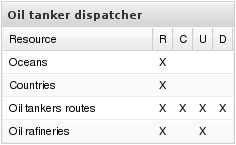
We have 9 Resources defined in our Configuration file. We want to have 5 persons to have full access to Oil tankers routes (they are Oil tanker’s dispatchers, that’s their job). So we want a map with Oceans and Countries in read only, and the Oil tankers routes Resource in full access to be able to edit the routes at will. Oil rafineries locations are also granted read and update access. The Role has access to no other Resources than thoses. Here’s how this example may look like :
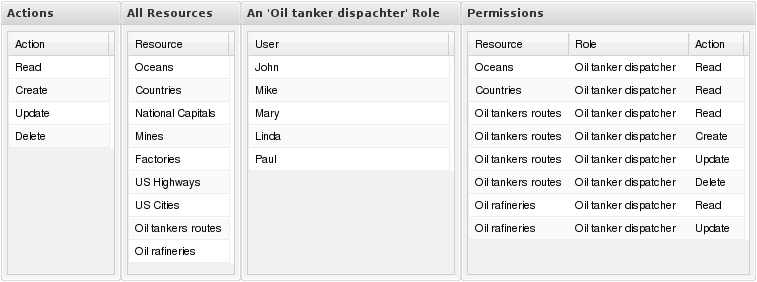
Here’s a more readable way to display the Permissions for the Oil tanker dispatcher Role :
A User in GeoPrisma is refered to the UserName of an external security application. GeoPrisma has no integrated user management security application.
A widget is a feature of the UI application. All GeoPrisma widgets have 2 main properties : * Action. Can be read, create, update or delete * ServiceType : (WMS, FeatureServer, TileCache, etc..)
Each widget can be associated to one or more Resources. The Resource has to have the according service defined by the Widget ServiceType to be able to use the widget properly. For example :
A QueryOnClick widget that has Action:read and ServiceType:WMS could be added to a Resource if that Resource has a WMS Service configured and would be added to the UI if the User is member of a Role has the read Permission to the related Resource.
That’s the User Interface. It get automatically generated with the widgets defined in the Resources the Role you’re currently using has access to. It uses the GeoExt, MapFish and OpenLayers API to do so.
ACL stands for Access Control List. It’s the application responsible of managing the Permissions, Actions, Roles and Resources in GeoPrisma.
The config holds the list of objects that GeoPrisma needs to build the UI and to resolved queries that go throught to the Proxy. The actual ‘objects’ it holds depends on the type of config you set up GeoPrisma with.
The ‘Proxy’ of GeoPrisma is the only point of entry for any queries made. For example, if we would want to make a WMS ‘GetMap’ query to a WMS Service that is defined in the Config, it must be made through the Proxy.
Its main purpose is to look at the query currently being made and see that the currently connected Role has the right to access the Resource asked in the query by looking in the ACL. If the user has the required Permission, the query is completed else denied.
A “Layout” is a config object used to determine the Template and the DrawMode in order to create the UI.
A Template is a XSLT file used as a UI skeleton. It has a list supported widgets and where to draw them. It uses the ExtJS API.
It the main .xslt file of GeoPrisma, which is locatate in [your_geoprimsa_root_directory]/src/client/templates/inc/Globals.xslt. It contains :
The name of the javascript library used to manipulate the dom, create gui objets, interfaces, etc. Here’s the list of current DrawMode used by GeoPrisma :
- extjs
A MapContext is basically a list of Resource inside a specific geospatial context, resulting in a map. It can have all options supported by the Map widget. It replaces the Map widget inside the MapContext configuration model
Here’s an XML representation of a MapContext :
<mapcontext>
  <name>MC_DEFAULT</name>
  <resources>
    <resource>R_OSM</resource>
    <resource>R_GMAP_BASE</resource>
    <resource>R_GMAP_PARK</resource>
    <resource>R_GMAP_PROV</resource>
    <resource>R_GMAP_FEDL</resource>
    <resource>R_GMAP_RAIL</resource>
    <resource>R_GMAP_ROAD</resource>
    <resource>R_GMAP_POPP</resource>
  </resources>
  <options>
    <projection>EPSG:4326</projection>
    <extent>-23,-14,13,34</extent>
  </options>
</mapcontext>
An Application consist of a list of Widget, a specific Template and a DrawMode, resulting in a complete webmapping application, but without any data layer.
Here’s an XML representation of an Application :
<application>
  <name>AP_DEFAULT</name>
  <layout>template.xslt</layout>
  <drawmode>extjs</drawmode>
  <widgets>
    <widget>W_MapFishLayerTree</widget>
    <widget>W_ScaleWidget</widget>
    <widget>W_InitialView</widget>
    <widget>W_Shortcut</widget>
    <widget>W_ZoomSlider</widget>
    <widget>W_Query</widget>
  </widgets>
</application>
Combining a MapContext with a Application results in a complete webmapping application (with the Application defined widgets) using and having data layers in it (from the MapContext defined resources). This combinaison is called a Session.
Here’s an XML representation of a Session :
<session>
  <name>SS_DEFAULT</name>
  <mapcontext>MC_DEFAULT</mapcontext>
  <application>AP_DEFAULT</application>
</session>
The MapContextConfiguration is a GeoPrisma Config (configuration) model that uses MapContext and Application objects to create complete webmapping applications. A Session can be optionnally used instead as well (combining both same objects).
Compared to the original model, a Resource defined with this one doesn’t have embed widgets. Here’s an example of a Resource defined in the original config :
<resource>
  <name>R_GMAP_BASE</name>
  <datastores>
    <datastore>DS_WMS_DEV4G_GMAP_BASE</datastore>
    <datastore>DS_TC_DEV4G_GMAP_BASE</datastore>
  </datastores>
  <!--
    The original config resources have widgets.  This is how the link
    between a resource and a widget works.
   -->
  <widgets>
    <widget>W_MapFishLayerTree</widget>
    <widget>W_ScaleWidget</widget>
    <widget>W_InitialView</widget>
    <widget>W_Shortcut</widget>
    <widget>W_ZoomSlider</widget>
    <widget>W_Query</widget>
  </widgets>
</resource>
In the MapContext configuration model things are working differently. Resources don’t have Widgets. Instead, they have options that can be read by widgets :
<resource>
  <name>R_GMAP_PARK</name>
  <datastores>
    <datastore>DS_WMS_DEV4G_GMAP_PARK</datastore>
  </datastores>
  <!--
    See that widgets are no longer defined in a resource.  Instead, we
    have resource options.
   -->
  <options>
    <layertreepath>/gmap/</layertreepath>
    <queryable>true</queryable>
    <zoomField>name<zoomField>
  </options>
</resource>
If the Resource has the option required by the Widget, then they are both automatically linked together by the Config driver. For example, the Shortcut widget requires the “zoomField” resource option. The above Resource (inside the example) would be linked to the widget since it has the required option, resulting in having a “park shortcut widget” added to the UI.
Naturally, the ACL (Access Control List) still has the same role to do. If the currently connected User has a Role that doesn’t have the required permissions to access a specific Resource inside a MapContext, then it won’t be part of the UI at all and the Widget wouldn’t link anything.
Resource options are used inside the MapContext configuration model. See the related article to know more : PGSQLMapContextConfig.
An AccessFilter consists of a user-custom condition to apply to all queries sent to a service for a specific resource in order to filter its returned content, which means it can be used :
There are currently 2 types of filters supported : ISSET and BBOX.
This type of filter requires a specific variable to be set in order for the condition to be considered valid. If the condition is met, then you can use this variable in any request sent to the service for a resource.
This type of filter requires the BBOX parameter values set inside a request URL to be contained inside an other BBOX set as the condition in order to be met. A commonly used behavior to do if the condition isn’t met is to return a blank image, for example when using a WMS GetMap request.
Note
This type of filter doesn’t currently give much powerful features, so it should be avoided.
An AccessFilter consists of an <accessfilter> node with one or more conditions. Each is contained inside <accessfilters> node, which is contained inside the configuration root node.
Here’s a complete example :
<accessfilters>
  <accessfilter>
    <name>AF_URL_test</name>
    <conditions>
      <condition>BBOX##SESSION:user_bbox##IMG:http://127.0.0.1/samples/accessfilter/checkmark.png##IMG:http://127.0.0.1/samples/accessfilter/cross.png</condition>
      <condition>ISSET##SESSION:login_username##URLPARAM:user##URLPARAM:nouser</condition>
    </conditions>
  </accessfilter>
</accessfilters>
Each <accessfilter> can then be linked to a resource as such :
<resource>
  <name>R_Province</name>
  <title>Provinces</title>
  <datastores>
    <datastore>DS_Province_WMS</datastore>
  </datastores>
  <accessfilters>
    <accessfilter>AF_URL_test</accessfilter>
  </accessfilters>
</resource>
Note
Configuration examples used above use the XMLConfig driver, but it is also supported in all other drivers as well.
A condition value is separated in 4 parts, each separated by two # characters. Its content looks like this :
1_type##2_input_type##3_action_if_met##4_action_if_not_met
| 1) Condition type: | |
|---|---|
(String) Mandatory. The condition types are already explained in details (see above). Possible values are (case-sensitive) :
|
|
| 2) Input type: | (String) Mandatory. Defines the value to use for the condition. Can be defined in two ways :
|
| 3) Condition met action: | |
(String) Mandatory. Defines the action to do when the condition is met. Value is defined as a string separated in two parts using a semi-column ‘:‘ character. The left portion defines the type of action, while the right part is used as value for the left part. The possible left values can be :
|
|
| 4) Condition not met action: | |
(String) Optional. Defines the action to do when the condition is not met. The value follows the same input as the condition met. |
|
Note
All option values defined inside a condition are case-sensitive.